Introduction
In this post we will create a website using Hugo and automatically deploy it on GitHub Pages using Github Actions.
Hugo Installation
On Linux, you can simply install Hugo with:
If you are not a Linux user, follow the appropriate documentation for your OS.
GitHub Repository
On your GitHub account, create a new repository and call it <username>.github.io, e.g. marcobompani.github.io.
Make sure the repository is Public.
Local Repository
Now we need to create a local git repository to store our website and push it to GitHub. In a terminal create a new folder (e.g. website), cd into it and run the following commands:
1
2
3
| git init
git remote add origin git@github.com:<username>/<username>.github.io.git
hugo new site . --force
|
Themes
You can also use one of the available Hugo Themes. If you do it, just add it as a git submodule with:
1
| git submodule add https://github.com/panr/hugo-theme-hello-friend.git themes/hello-friend
|
Make sure to replace the URL and themes/hello-friend accordingly.
Push the Changes
After you have added some content to your website, you are ready to push the changes to GitHub with:
1
2
3
| git add -A
git commit -m "some cool commit"
git push
|
How to create a website with Hugo is out of the scope of this post. If you do not know how to do it, a good place where to start is their quick start guide.
Build and Deployment
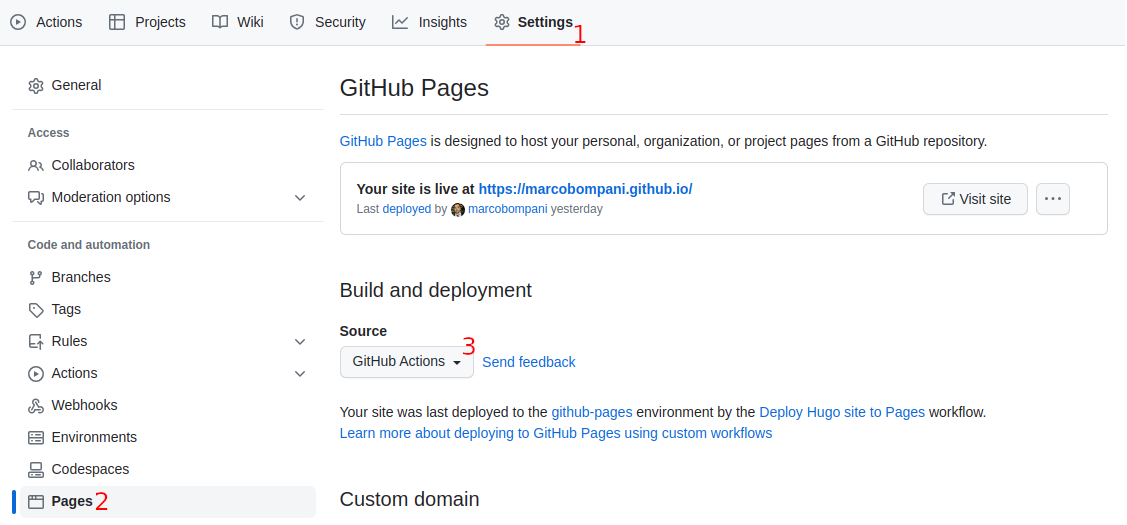
On your GitHub repository webpage:
- click on Settings
- click on Pages
- select GitHub Actions as Source

After selecting GitHub Actions as Source, click on create your own.
Finally, in the GitHub editor give the new file a name, e.g. hugo.yml and paste the following content into it:
 1
 2
 3
 4
 5
 6
 7
 8
 9
10
11
12
13
14
15
16
17
18
19
20
21
22
23
24
25
26
27
28
29
30
31
32
33
34
35
36
37
38
39
40
41
42
43
44
45
46
47
48
49
50
51
52
53
54
55
56
57
58
59
60
61
62
63
64
65
66
67
68
| # Sample workflow for building and deploying a Hugo site to GitHub Pages
name: Deploy Hugo site to Pages
on:
# Runs on pushes targeting the default branch
push:
branches: ["main"]
# Allows you to run this workflow manually from the Actions tab
workflow_dispatch:
# Sets permissions of the GITHUB_TOKEN to allow deployment to GitHub Pages
permissions:
contents: read
pages: write
id-token: write
# Allow only one concurrent deployment, skipping runs queued between the run in-progress and latest queued.
# However, do NOT cancel in-progress runs as we want to allow these production deployments to complete.
concurrency:
group: "pages"
cancel-in-progress: false
# Default to bash
defaults:
run:
shell: bash
jobs:
# Build job
build:
runs-on: ubuntu-latest
steps:
- name: Install Hugo CLI
run: sudo snap install hugo
- name: Install Dart Sass
run: sudo snap install dart-sass
- name: Checkout
uses: actions/checkout@v3
with:
submodules: recursive
- name: Setup Pages
id: pages
uses: actions/configure-pages@v3
- name: Install Node.js dependencies
run: "[[ -f package-lock.json || -f npm-shrinkwrap.json ]] && npm ci || true"
- name: Build with Hugo
env:
# For maximum backward compatibility with Hugo modules
HUGO_ENVIRONMENT: production
HUGO_ENV: production
run: hugo --minify
- name: Upload artifact
uses: actions/upload-pages-artifact@v2
with:
path: ./public
# Deployment job
deploy:
environment:
name: github-pages
url: ${{ steps.deployment.outputs.page_url }}
runs-on: ubuntu-latest
needs: build
steps:
- name: Deploy to GitHub Pages
id: deployment
uses: actions/deploy-pages@v2
|
Conclusions
Now every time you push some changes from your local repository to GitHub, your Hugo website will be built and deployed automatically.